Construction Estimate to QuickBooks: Complete Handoff Workflow (2026)
<p><strong>Quick answer:</strong> Getting your construction estimate into QuickBooks without re-typing everything requires a structured handoff: map your estimate line items to QuickBooks cost codes, export as CSV with the right fields, validate the data, and import. The process takes 15–30 minutes when you have the right field map — versus 2–4 hours of manual re-entry (with errors). <a href="https://www.oneestimate.ai/en?utm_source=hubservice&utm_medium=blog&utm_campaign=construction-estimate-to-quickbooks-workflow-2026">OneEstimate.ai</a> generates structured, exportable estimates that align with standard accounting workflows, making the QuickBooks handoff straightforward.</p>
<h2>Why the estimate-to-accounting handoff matters</h2>
<p>The estimate is where cost data is born. If it doesn't flow cleanly into your accounting system, you end up with:</p>
<ul>
<li><strong>Duplicate data entry</strong> — re-typing 50–200 line items introduces errors</li>
<li><strong>Cost code mismatches</strong> — your estimate says "Electrical Rough-In" but QuickBooks has "26-100 Electrical"</li>
<li><strong>No job costing</strong> — without mapped costs, you can't compare actual vs. estimated during the project</li>
<li><strong>Change order chaos</strong> — modifications don't flow back to accounting</li>
</ul>
<h2>The field mapping: what must align</h2>
<table>
<thead><tr><th>Estimate Field</th><th>QuickBooks Field</th><th>Notes</th></tr></thead>
<tbody>
<tr><td>Project Name</td><td>Customer:Job</td><td>Must match exactly; create the Job first in QB</td></tr>
<tr><td>Cost Code / Category</td><td>Item / Service</td><td>Pre-create Items in QB matching your estimate structure</td></tr>
<tr><td>Description</td><td>Description</td><td>Keep under 4,000 chars for QB Desktop</td></tr>
<tr><td>Quantity</td><td>Qty</td><td>Use same unit of measure</td></tr>
<tr><td>Unit Cost</td><td>Rate</td><td>Exclude markup if tracking separately</td></tr>
<tr><td>Total</td><td>Amount</td><td>QB calculates Qty × Rate; validate it matches</td></tr>
<tr><td>Vendor / Sub</td><td>Vendor Name</td><td>Must exist in QB vendor list</td></tr>
<tr><td>Cost Type (Labor/Material/Equipment)</td><td>Account / Class</td><td>Map to your Chart of Accounts</td></tr>
</tbody>
</table>
<h2>Step-by-step workflow</h2>
<ol>
<li><strong>Finalize your estimate in OneEstimate.</strong> All quantities, costs, and markup should be complete.</li>
<li><strong>Set up your QuickBooks job.</strong> Create the Customer:Job with the same project name.</li>
<li><strong>Map cost codes.</strong> Ensure every estimate category has a matching QuickBooks Item/Service. Download our <a href="https://www.oneestimate.ai/en?utm_source=hubservice&utm_medium=blog&utm_campaign=construction-estimate-to-quickbooks-workflow-2026">free cost-code mapping template</a>.</li>
<li><strong>Export from OneEstimate.</strong> Export as CSV or Excel with all required fields.</li>
<li><strong>Validate before import.</strong> Check: (a) all vendor names exist in QB, (b) all Items exist, (c) no blank required fields, (d) amounts reconcile to estimate total.</li>
<li><strong>Import into QuickBooks.</strong> Use QB's import function (Desktop: File > Utilities > Import; Online: use the import transactions feature).</li>
<li><strong>Verify totals.</strong> Compare the imported job total to your estimate total. If they don't match, check the validation items above.</li>
</ol>
<h2>QuickBooks Desktop vs. Online: key differences</h2>
<table>
<thead><tr><th>Feature</th><th>QB Desktop</th><th>QB Online</th></tr></thead>
<tbody>
<tr><td>CSV import</td><td>Supported (IIF or CSV via import utility)</td><td>Supported (CSV)</td></tr>
<tr><td>Job costing</td><td>Full sub-job support</td><td>Limited (Projects feature)</td></tr>
<tr><td>Cost codes</td><td>Items + Sub-items (deep hierarchy)</td><td>Products/Services (flat or 1-level)</td></tr>
<tr><td>Estimate import</td><td>Native estimate feature</td><td>Estimates feature (limited line items)</td></tr>
<tr><td>Change orders</td><td>Manual adjustment</td><td>Manual adjustment</td></tr>
</tbody>
</table>
<h2>Common mistakes to avoid</h2>
<ul>
<li><strong>Importing markup as a cost.</strong> If you track markup separately in QB, export base costs only.</li>
<li><strong>Not pre-creating Items.</strong> QB rejects import rows with Items that don't exist. Create them first.</li>
<li><strong>Mismatched project names.</strong> "Smith Residence" in the estimate and "Smith, John - Residence" in QB are different jobs.</li>
<li><strong>Ignoring QB Desktop's 14,000 line limit.</strong> Large projects may need to be split into phases.</li>
</ul>
<h3>Does OneEstimate integrate directly with QuickBooks?</h3>
<p>OneEstimate exports structured CSV/Excel files that can be imported into QuickBooks Desktop and Online. For the most seamless workflow, use OneEstimate's export with the cost-code mapping template to ensure field alignment. A direct API integration is on the product roadmap.</p>
<h3>What if my estimate has more detail than QuickBooks can handle?</h3>
<p>Consolidate detail lines into summary categories for QB import. Keep the detailed breakdown in OneEstimate for reference. Your QB job cost report will show category-level actuals vs. estimate.</p>
<h3>How do I handle change orders in both systems?</h3>
<p>Process the change order in OneEstimate first (adjust quantities, add/remove scope). Then export only the change-order lines as an additional import to QB, tagged to the same Job. This maintains an audit trail in both systems.</p>
<h3>Can I use this workflow with Sage, Xero, or other accounting software?</h3>
<p>Yes — the same field-mapping approach works for any accounting system that accepts CSV imports. The specific field names and import process will differ, but the principle is the same: map estimate fields to accounting fields, validate, import.</p>
<h3>Is there a cost-code mapping template I can download?</h3>
<p>Yes. OneEstimate provides a free downloadable cost-code mapping template that covers the most common CSI MasterFormat divisions. <a href="https://www.oneestimate.ai/en?utm_source=hubservice&utm_medium=blog&utm_campaign=construction-estimate-to-quickbooks-workflow-2026">Get it at oneestimate.ai</a>.</p>
<p><strong>Stop re-typing estimates into QuickBooks.</strong> <a href="https://www.oneestimate.ai/en?utm_source=hubservice&utm_medium=blog&utm_campaign=construction-estimate-to-quickbooks-workflow-2026">Try OneEstimate free</a> — create structured, exportable estimates that flow into your accounting workflow.</p>
<!-- en-crosslinks-v1 -->
<hr/>
<h3>Related Estimating Guides</h3>
<ul>
<li><a href="/en/blog/construction-estimate-procore-budget-import-2026">Construction Estimate Procore Budget Import</a></li>
<li><a href="/en/blog/construction-cost-code-mapping-template-excel-2026">Construction Cost Code Mapping Template Excel</a></li>
<li><a href="/en/blog/best-construction-estimating-software-2026">Best Construction Estimating Software</a></li>
<li><a href="/en/blog/construction-estimate-spreadsheet-to-software-migration-2026">Construction Estimate Spreadsheet To Software Migration</a></li>
</ul>
🚀 Try OneEstimate.ai for FREE
The AI construction estimating software that builds your material, labor and equipment breakdown automatically. Free plan to start — no credit card, no commitment.
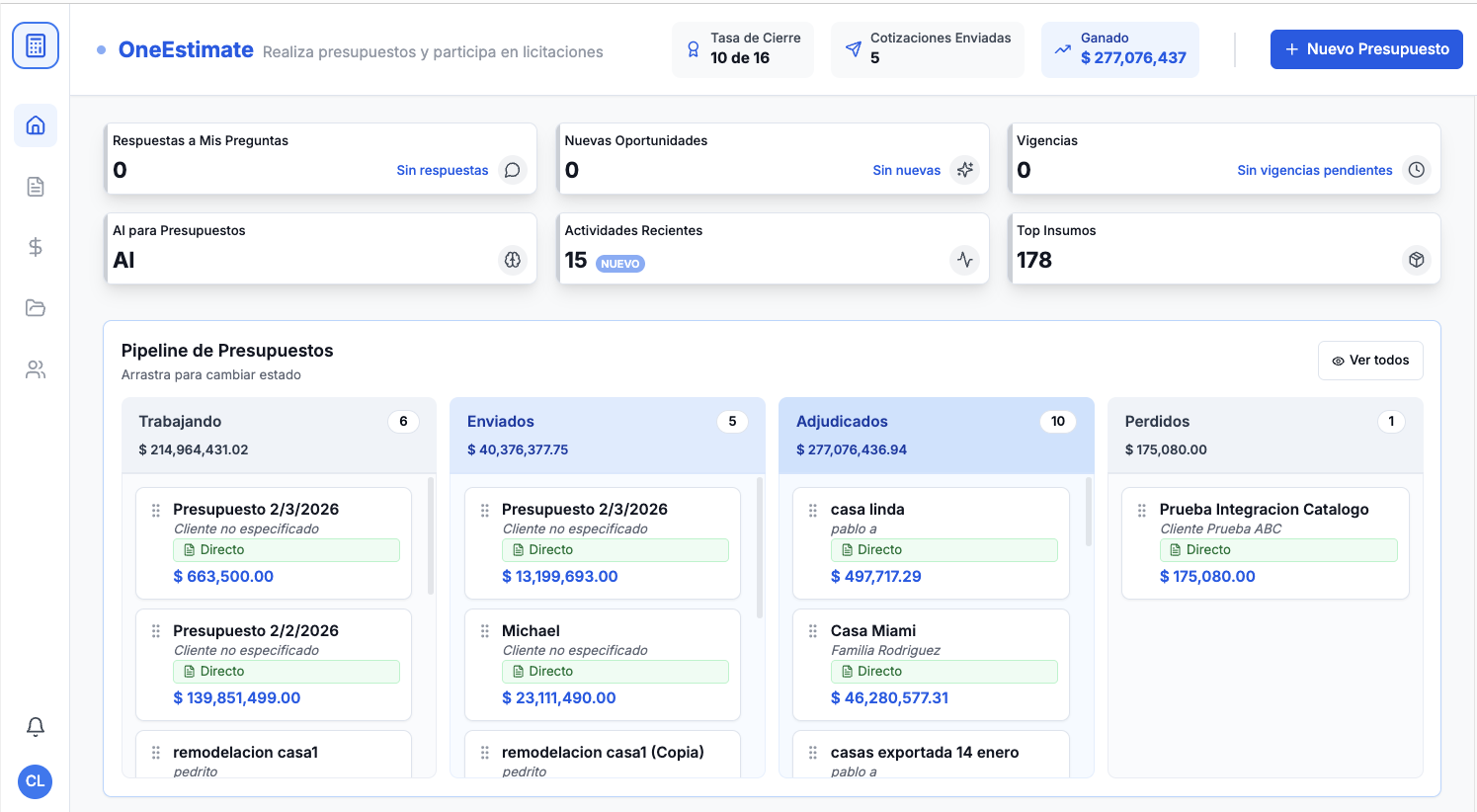
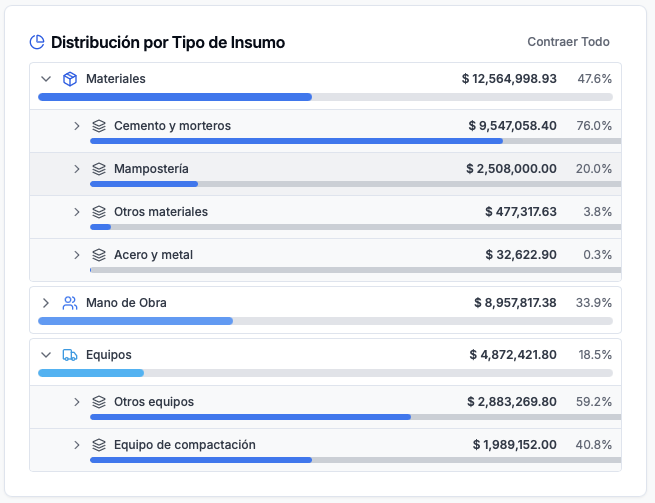
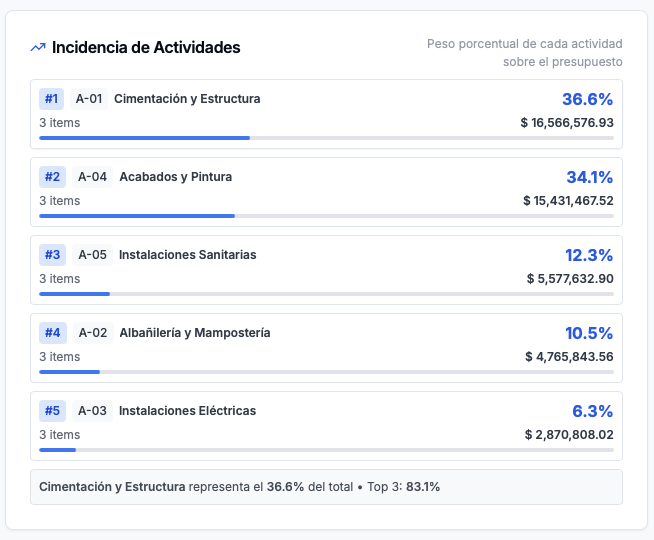
Product preview: OneEstimate.ai
Real screenshots of the market-leading AI estimating platform. Click any image to try OneEstimate.ai.